
Example
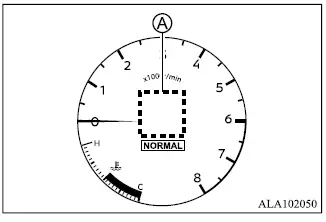
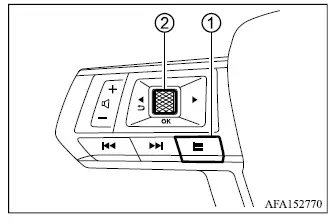
The Personal Display area A can show several types of driving and vehicle information. To choose the item displayed in this area:
1. Press control switch 1 on the left side of the steering wheel.
2. The "Shortcut Menu" will appear in the multi-information display area.
3. Rotate scroll dial 2 to select "Personal Display," and then press the scroll dial to confirm the selection.
The Personal Display can be configured to show any of the following information:
- Blank, with no information shown
- Navigation guidance, including the compass
- Estimated time to destination
- Fuel economy information
- Trip information
- Current gear position
- Average vehicle speed
- Brake light status
The position of Personal Display area A changes automatically when a different meter screen view is selected.
Settings
The Settings mode allows the driver to adjust the information, functions and preferences shown in the Mitsubishi Outlander multi-information display. Depending on the equipment installed in the vehicle, the following menus may be available:
- ASC Setting
- Driver Assistance
- Personal Display
- Head-Up Display
- ECO Mode Setting
- TPMS Setting
- Clock
- Vehicle Settings
- Maintenance
- Customize Display
- Unit / Language
- Key-Linked Settings
- Factory Reset
ASC Setting
To change an ASC setting, rotate the scroll dial to highlight the desired item and press the dial to confirm.
- System
This setting allows the Active Stability Control [ASC] system to be switched ON or OFF. ASC is enabled by default whenever the Mitsubishi Outlander is started. If the system is turned off, the ASC OFF indicator light will illuminate in the meter display.
NOTE
- For most road surfaces and normal driving conditions, the Mitsubishi Outlander should be operated with Active Stability Control [ASC] switched ON.
Driver Assistance
Use the scroll dial to review and change the status, warning preferences or ON/OFF setting of functions shown in the "Driver Assistance" menu. Available menu items vary according to the driver assistance equipment fitted to the vehicle.
- Steering Assist
- Lane
- Blind Spot
- Emergency Brake
- Traffic Sign
- Speed Adjust by Route
- Spd. Limit Assist
- Parking sensors
- Rear Cross Traffic Alert
- Driver Attention Alert
- Driver Monitor
- Timer Alert
- Low Temp. Alert
Steering Assist
- Allows the driver to switch Lane Keep Assist [LKA] ON or OFF.
Lane
- Warning [LDW]
Allows the driver to enable or disable the Lane Departure Warning [LDW] system. - Prevention [LDP]
Allows the driver to enable or disable the Lane Departure Prevention [LDP] system.
Blind Spot
- Warning [BSW]
Allows the driver to switch the Blind Spot Warning [BSW] system ON or OFF. - Active Assist [ABSA]
Allows the driver to switch the Active Blind Spot Assist [ABSA] system ON or OFF.
Emergency Brake
Models without Rear Automatic Emergency Braking [Rear AEB]: This setting allows the driver to switch the Forward Collision Mitigation System [FCM] and Predictive Forward Collision Warning [PFCW] system ON or OFF.
Models with Rear Automatic Emergency Braking [Rear AEB]: The Emergency Brake menu provides separate controls for the front and rear collision mitigation functions.
- Front
Allows the driver to switch the Forward Collision Mitigation System [FCM] and Predictive Forward Collision Warning [PFCW] system ON or OFF. - Rear
Allows the driver to switch the Rear Automatic Emergency Braking [Rear AEB] system ON or OFF.
Traffic Sign
This menu allows the driver to switch the Traffic Sign Recognition function ON or OFF, depending on whether road sign information should be shown by the Mitsubishi Outlander driver assistance system.
Speed Adjust by Route
This setting allows the Speed Adjust by Route function, available with MI-PILOT Assist with Navi-link, to be enabled or disabled.
Spd. Limit Assist
This menu allows the driver to customize the available Speed Limit Assist settings for MI-PILOT Assist with Navi-link.
- OFF - disables Speed Limit Assist.
- Manual - allows the driver to apply the recognized speed limit manually.
- Auto - allows the system to use the recognized speed limit automatically when the required operating conditions are met.
Parking sensors
To change the operating status of functions shown in the "Parking sensors" menu, rotate the scroll dial to highlight the required item and press it to change the setting:
- Moving Object
Press the scroll dial to switch Moving Object Detection [MOD] ON or OFF. - Auto Show Sensor
Allows the driver to enable or disable the automatic parking sensor display. - Front
Allows the front parking sensors to be switched ON or OFF. - Rear
Allows the rear parking sensors to be switched ON or OFF. - Distance
Allows the detection range of the parking sensors to be set to Long, Medium or Short. - Volume
Allows the parking sensor warning volume to be set to High, Medium or Low.
Rear Cross Traffic Alert
This setting allows the Rear Cross Traffic Alert system to be switched ON or OFF.
Driver Attention Alert
Model with Combination meter cluster / Multi-information display (Type 1)
This setting allows the Driver Attention Alert [DAA] system to be enabled or disabled on Mitsubishi Outlander models equipped with the Type 1 display.
Driver Monitor
Model with full digital driver display (Type 2)
- Driver Attention Alert
Allows the Driver Attention Alert [DAA] function to be switched ON or OFF on models equipped with the Type 2 full digital driver display.
Timer Alert
This menu allows the driver to set the Timer Alert, review the selected time or reset the function.
- Current Time/Set Time - displays or changes the timer setting.
- Reset - clears the current Timer Alert setting.
Low Temp. Alert
This setting allows the Low Temperature Alert function to be switched ON or OFF.
Personal Display
To change the information shown in the "Personal Display" area, use the scroll dial to highlight and select one of the following menu items:
- Blank - leaves the Personal Display area empty.
- Navigation - shows available navigation or compass information.
- Time to Destination - shows the estimated travel time remaining to the selected destination.
- Fuel Economy
- Manual Reset1
- Manual Reset2
- Auto Refuel
- Trip
- Manual Reset1
- Manual Reset2
- Auto Refuel
- Gear Position - displays the selected transmission position.
- Average Speed
- Manual Reset1
- Manual Reset2
- Auto Refuel
- Brake Light - displays brake light operating information.
Head-Up Display
To adjust the Head-Up Display or change the information shown in it, rotate the scroll dial to select the required item and press the dial to confirm:
- Brightness - adjusts the brightness of the projected display.
- Height - raises or lowers the displayed image within the driver's field of view.
- Rotation - adjusts the angle of the projected information.
- Displayed information
- Navigation
- Driving Assist, if so equipped
- Traffic Sign, if so equipped
- Audio*
- TEL/SMS
- Reset Settings - restores the Head-Up Display settings to their default values.
*: Audio information is shown in the Head-Up Display only when the audio system is being operated with the steering wheel controls.
ECO Mode Setting
This menu allows the driver to customize the ECO mode information and related efficiency displays available in the Mitsubishi Outlander.
To change the status of a function shown in the "ECO Mode Setting" menu, rotate the scroll dial to select the required item and press it to confirm:
- ECO Drive Assist
- ECO Indicator - enables or disables the driving-efficiency indicator.
- ECO Drive Report - enables or disables the ECO driving summary.
- View History
To reset the stored ECO history:
1. Select "View History" with the scroll dial and press the dial.2. Press the scroll dial again when the reset option appears.
3. Select "Yes" and press the scroll dial to confirm.
- Tire Pres Eco advice
Press the scroll dial to switch the "Tire Pres Eco advice" function ON or OFF.
TPMS setting
The options in the "TPMS setting" menu are used to configure information related to the Mitsubishi Outlander Tire Pressure Monitoring System [TPMS].
- Tire Pressure Unit - selects the unit used to display tire pressure information.
Tire Pressure Unit
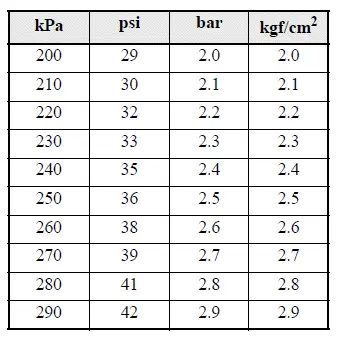
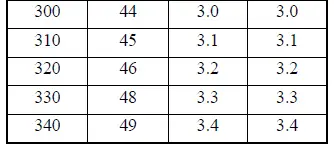
The tire pressure unit shown in the multi-information display of the Mitsubishi Outlander can be changed to match the driver's preferred measurement system. Depending on the selected setting, tire pressure values can be displayed using any of the following units:
- psi
- kPa
- bar
- kgf/cm2
Use the scroll dial to highlight the tire pressure unit setting, then select the desired unit. Once changed, tire pressure information in the multi-information display will be presented using the selected measurement unit.
If you need to compare a tire pressure value stated in a different measurement system, refer to the following conversion table for the corresponding values.
Clock
The Clock settings allow the driver to adjust how the time is configured and displayed within the Mitsubishi Outlander multi-information display. These settings can be used to select the preferred clock mode, time format, time zone, and other available time-related functions.
The specific clock settings shown in the menu may vary depending on the vehicle's equipment and configuration.
- Clock Mode
- Clock Format
- Daylight Saving
- Time Zone
- Set Clock Manually
The clock can also be adjusted through the center audio display when the vehicle is equipped with the applicable system. For additional details about changing the time through that display, refer to the separate Smartphone-link Display Audio [SDA] Owner's Manual.
Vehicle Settings
The Vehicle Settings menu allows the driver to customize a number of Mitsubishi Outlander convenience and operating functions directly through the multi-information display. Only settings supported by the equipment installed on the vehicle will appear in the menu, so the available items may differ between vehicles.
- Electric Tail Gate
- Lighting
- Locking
- Wiper
- Driving Position
- Rear Seat Alert
Vehicle settings are selected and changed using the scroll dial button. Rotate the dial to move through the available menu items and use it to confirm or change the selected setting.
Electric Tail Gate
This setting allows the Electric Tail Gate function to be switched ON or OFF. Use the corresponding Vehicle Settings menu item and the scroll dial to select whether the Electric Tail Gate function should remain enabled or disabled.
Lighting
The "Lighting" menu provides several options for customizing exterior and interior lighting-related functions. The available settings include:
- Welcome Light
The Welcome Light function can be switched ON or OFF. From the "Lighting" menu, select "Welcome Light", then use the scroll dial to enable or disable the function according to your preference. - Auto Room Lamp
The automatic interior lamp timer can be enabled or disabled through this setting. From the "Lighting" menu, select "Auto Room Lamp", then use the scroll dial to turn the function ON or OFF. - Accent Lighting
The brightness of the Accent Lighting can be adjusted through the multi-information display. From the "Lighting" menu, select "Accent Lighting", then use the scroll dial to choose the desired brightness level.
Locking
The "Locking" menu contains several settings that allow the driver to customize how the Mitsubishi Outlander's door and liftgate locking and unlocking functions operate:
- Ext. Door Switch
When this setting is enabled, the request switches located on the doors and liftgate are active and can be used for the corresponding locking or unlocking functions. From the "Locking" menu, select "Ext. Door Switch", then use the scroll dial to activate or deactivate the function. - Selective Unlock
When this function is enabled and a request switch is pushed, only the corresponding door or the liftgate is unlocked.All doors can then be unlocked by pushing the door handle request switch again within 2 seconds. When Selective Unlock is turned OFF, pushing the door handle request switch once unlocks all doors instead of only the corresponding door. From the "Locking" menu, select "Selective Unlock".
Use the scroll dial to activate or deactivate this function based on the preferred unlocking behavior.
- Auto Door Unlock
The "Auto Door Unlock" setting allows the driver to customize when the doors are automatically unlocked. Depending on the selected option, automatic unlocking can be associated with the transmission position, ignition status, or disabled completely.- Shift to P
- IGN OFF
- OFF
- Horn beeps on lock
When the horn-beep-on-lock function is enabled, the horn will chirp and the hazard indicators will flash when the Mitsubishi Outlander is locked using the transmitter. This provides audible and visual confirmation that the locking operation has been performed.
Wiper
The "Wiper" menu provides settings for several automatic and linked wiper functions. Available options depend on the equipment fitted to the vehicle and may include the following:
- Speed Sensing
The "Speed Sensing Wiper" function can be activated or deactivated through the multi-information display. From the "Wiper" menu, select "Speed Sensing".Use the scroll dial to switch this function ON or OFF.
- Rain Sensor (if so equipped)
The "Rain Sensor" function can be enabled or disabled when the Mitsubishi Outlander is equipped with this feature. From the "Wiper" menu, select "Rain Sensor", then use the scroll dial to turn the function ON or OFF. - Reverse Link
The "Reverse Link" wiper function can be switched ON or OFF. From the "Wiper" menu, select "Reverse Link", then use the scroll dial to choose the desired setting.
Driving Position
The Driving Position menu displays the available settings related to the driver's seat position and entry or exit convenience functions in the Mitsubishi Outlander.
- Exit Seat Slide (Driver)
When this setting is enabled, the driver's seat automatically moves rearward to provide additional space for easier exit after the ignition is turned off and the driver's door is opened. After the driver enters the vehicle again and places the ignition switch in the ON position, the seat returns to the previously set driving position.
Rear Seat Alert
The "Rear Seat Alert" feature allows the driver to customize how the rear-seat reminder operates. Use the scroll dial to select the preferred alert mode from the available options.
- Horn & Alert
When this option is selected, a visual alert is displayed and the vehicle horn also sounds. - Alert Only
When this option is selected, the warning is shown in the display without sounding the horn. - OFF
When this option is selected, the Rear Seat Alert function does not provide either a visual alert or a horn warning.
Maintenance
The Maintenance menu allows maintenance reminders to be managed so the driver can keep track of selected service intervals and other scheduled checks for the Mitsubishi Outlander.
The maintenance items displayed in the menu may vary depending on the vehicle's equipment. To view or change a maintenance item, use the scroll dial to select "Maintenance", then push the scroll dial to open the menu.
- Oil Control System (if so equipped)
- Oil and Filter (if so equipped)
- Tire
- Other
Oil Control System (if so equipped
The Oil Control System indicates the remaining distance until an engine oil change is required. For vehicles equipped with the PR25 engine, the engine oil change interval must never exceed one year or 10,000 miles (16,000 km).
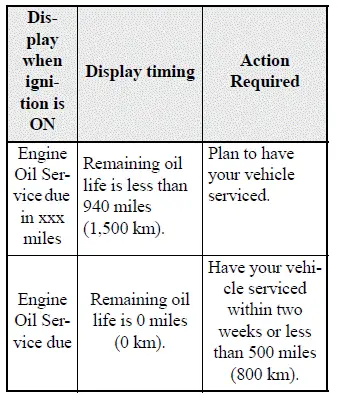
The oil control reminder interval is managed automatically by the system and cannot be adjusted manually by the driver.
The remaining distance to the next oil change is calculated automatically according to driving conditions. Because the calculation reflects vehicle use, the displayed interval can change over time. As the Mitsubishi Outlander approaches the end of the calculated service interval, a reminder appears in the multi-information display.
If the Factory Reset option is selected in the multi-information display, the Oil Control System is also returned to its initial value.
The engine oil should be changed when Factory Reset is selected so that the reset value correctly corresponds with the beginning of a new oil service interval.
CAUTION
- If the oil replacement indicator is displayed, change the engine oil within two weeks or before driving an additional 500 miles (800 km), whichever comes first.
Continuing to operate the vehicle with deteriorated engine oil can cause engine damage.
NOTE
- The actual oil change interval may be shorter than 10,000 miles (16,000 km). The amount by which the interval is shortened depends on the driving conditions under which the vehicle is operated.
To reset the Oil Control System:
1. Place the ignition switch in the ON position.
2. Push the
 and
and
 buttons on the steering wheel until "Settings" appears in the multi-information display. Use the scroll dial to select "Maintenance", then push the scroll dial to open the maintenance menu.
3. Select "Oil Control System" and push the scroll dial.
4. Push the scroll dial and follow the reset instructions displayed at the bottom of the "Oil Control System" maintenance screen.
Oil and Filter (if so equipped)
This indicator appears when the driver-set distance for engine oil and filter replacement is reached. It provides a mileage-based reminder that the selected maintenance interval has come due.
The distance used for checking or replacing the engine oil and filter can be set or reset through the maintenance menu.
Tire
This indicator appears when the driver-set distance for tire replacement is reached. The selected distance can be set or reset through the Maintenance menu, allowing the tire reminder to be used as a convenient mileage reference.
WARNING
- The tire replacement indicator is not a substitute for regular tire inspections, including routine tire pressure checks. Tire wear and replacement timing are affected by many factors, including inflation pressure, wheel alignment, driving habits, and road conditions. Setting the Mitsubishi Outlander tire replacement indicator to a particular driving distance does not mean that the tires will necessarily remain serviceable for that entire distance. Use the indicator only as a maintenance guide and continue to inspect the tires regularly. Failure to perform regular tire inspections, including tire pressure checks, can result in tire failure. Tire failure can cause serious vehicle damage and may lead to a collision resulting in serious personal injury or death.
Other
This maintenance indicator appears when the driver-defined distance is reached for inspecting or replacing service items other than the engine oil, oil filter, or tires. Depending on the maintenance schedule for the Mitsubishi Outlander, these items may include components such as the air filter or a scheduled tire rotation. The reminder distance can be set or reset so it corresponds with the desired inspection or replacement interval.
Customize Display
The Customize Display settings allow the driver to select how information is presented in the meter and multi-information display. The available menu items may differ depending on the equipment and configuration of the Mitsubishi Outlander.
Use the scroll dial to move through the available display settings and select the preferred configuration.
Change Meter View
On models equipped with the full-screen display, the meter screen layout can be changed to provide a larger multi-information display area. This allows the driver to choose a meter presentation that better suits the information being viewed.
Main Menu Selection
This setting displays the available screens that can be selected for presentation in the multi-information display. It allows the driver to determine which information screens are accessible from the main display menu.
The available selections vary depending on the vehicle's equipment.
Navigation Settings
The Navigation Settings menu allows the navigation-related display function to be turned ON or OFF. Use the scroll dial to select the desired setting.
Cruise Screen
The "Cruise Screen" setting allows the driver to enable or disable the automatic screen transition associated with the cruise function. Use the scroll dial to turn the cruise screen transition ON or OFF.
Welcome Effect
The "Welcome Effect" menu contains the available settings for the visual welcome effect shown by the Mitsubishi Outlander display when the applicable function operates.
- Animation
Operation Guidance
The "Operation Guidance" menu controls the available on-screen guidance for selected vehicle functions, including lighting and wiper operation. These guidance displays can help indicate how certain controls or systems are being used.
The specific guidance items shown in the menu vary depending on the vehicle's equipment.
- Lights
- Wiper
- Seat Memory
- Speed Limiter
- Cruise Control
Units/Language
The Units/Language menu allows the measurement units and display language used in the Mitsubishi Outlander multi-information display to be customized. The following settings can be changed:
- Mileage/Fuel
- Tire Pressure
- Temperature
- Language
Use the scroll dial to select the desired category and change the corresponding unit or language setting shown in the multi-information display.
Mileage/Fuel
The measurement unit used for mileage and fuel information in the multi-information display can be changed to suit the driver's preferred unit system.
Use the scroll dial to select the Mileage/Fuel setting and choose the desired unit.
Tire Pressure
The measurement unit used for tire pressure values in the multi-information display can be changed. Select the Tire Pressure setting and use the scroll dial to choose the preferred pressure unit.
Temperature
The temperature unit shown in the multi-information display can be changed between the following options:
- ºF
- ºC
Use the scroll dial to toggle between the available temperature units and select the preferred setting.
Language
The language used for menus, messages, and other information in the multi-information display can be changed according to the driver's preference.
Use the scroll dial to select the Language setting, then choose the desired display language from the available options.
Key-Linked Settings
The Key-Linked Settings function can be turned ON or OFF using the scroll dial. When enabled, the display identifies the synchronized key currently associated with and being used for the Mitsubishi Outlander.
Factory Reset
The configurable settings in the multi-information display can be returned to their original factory defaults. This function resets the applicable customized display and vehicle settings. To perform a factory reset:
1. Use the scroll dial to select "Factory Reset", then push the scroll dial to open the reset option.
2. Select "YES" and push the scroll dial to confirm. The applicable multi-information display settings will then be returned to their factory default values.
