
Bird's eye-view/Rear-view mode
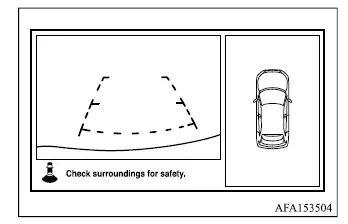
This mode displays a bird's-eye representation of the area surrounding the vehicle together with the view directly behind the Mitsubishi Outlander.
Side-view/Rear-view mode
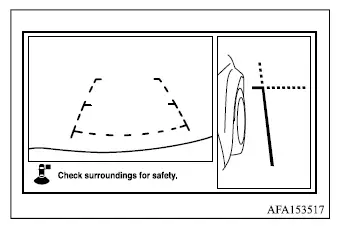
This mode displays the area along the passenger side of the vehicle together with the rear camera view.
Bird's eye-view/Front-view mode
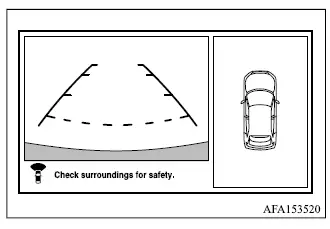
This mode combines a bird's-eye representation of the area around the vehicle with the camera view directly in front of the Mitsubishi Outlander.
Side-view/Front-view mode
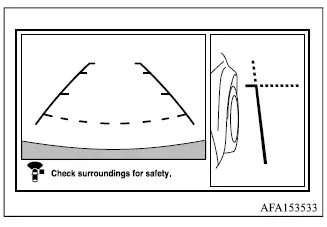
This view displays the area along the passenger side of the vehicle together with the area directly in front of the vehicle.
Front-wide/rear-wide view
Front-wide view
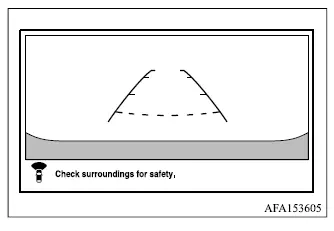
Rear-wide view
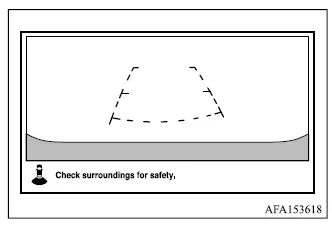
The front-wide and rear-wide modes provide expanded views of the area in front of or behind the vehicle.
CAUTION
- The Multi Around Monitor cameras use special wide-angle lenses. As a result, the shape, position, and apparent distance of objects shown on the screen may differ from their actual appearance and distance.
NOTE
- Because the cameras use special lenses, lines painted on the ground, including parking space markings, may not appear parallel on the display even when they are parallel in reality.
- Under certain conditions, the camera image may be difficult to see even though the Multi Around Monitor system is operating normally.
- In dark surroundings, such as at night.
- When water droplets or condensation are present on a camera lens.
- When direct sunlight or vehicle headlights shine into a camera lens.
- When fluorescent lighting shines directly into a camera lens.
- If the outside temperature is extremely high or extremely low, the camera images may become less clear. This condition does not necessarily indicate a system malfunction.
- If wireless equipment is installed close to one of the cameras, electromagnetic interference may affect the displayed image or interfere with normal Multi Around Monitor operation.
Multi Around Monitor system operation
With the ignition switch in the ON position, the Multi Around Monitor can be activated by pressing the CAMERA button on the instrument panel or by moving the shift lever to the R (Reverse) position.
The selected Multi Around Monitor camera views will appear on the Smartphone-link Display Audio [SDA] screen.
If the CAMERA button is used while the shift lever is in a position other than R (Reverse), the Multi Around Monitor display will automatically return to the previously shown screen approximately 3 minutes after activation.
